Google Workspace Studio: Automate Work With AI
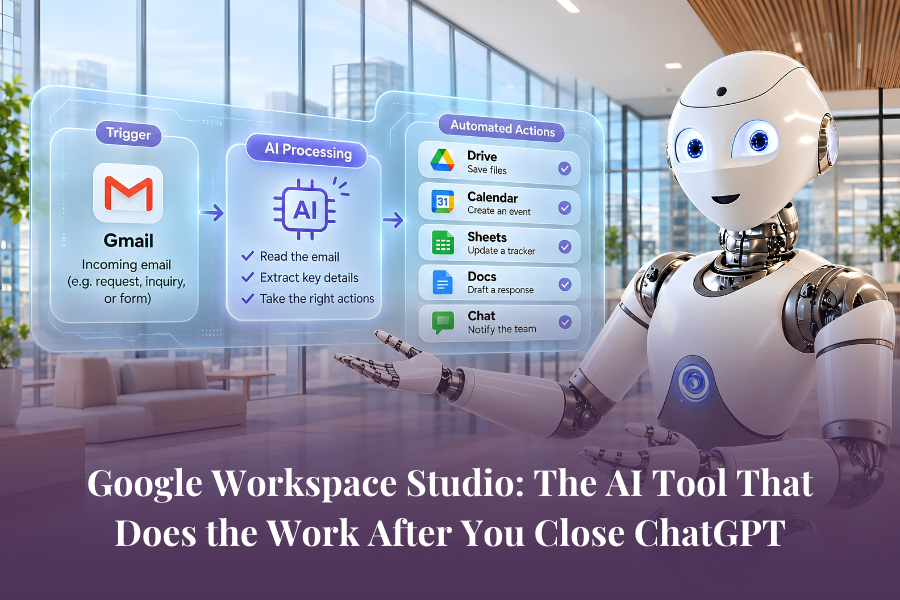
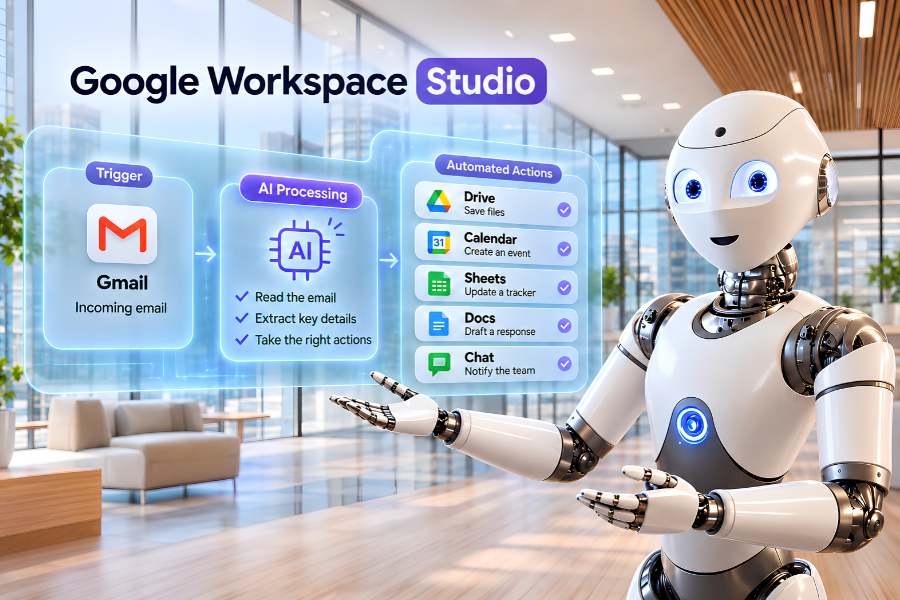
Short Answer: Google Workspace Studio is an AI-powered automation tool that lets you build workflows across Gmail, Google Drive, Calendar, Sheets and other connected apps. Instead of repeatedly prompting AI to complete a task, you create a flow that runs when something happens, such as receiving an email, finishing a meeting or updating a file.
You open an email, copy it into ChatGPT, ask for a response, copy the answer back into Gmail, tidy up the formatting and hit send.
Then another email arrives. And you do it all again. Sound familiar?
AI has made individual tasks faster, but many business owners are still doing the work of moving information between tools. You're prompting, copying, pasting, organising and checking, often repeating the same process throughout the day.
Google Workspace Studio offers a different way to work.
Instead of sitting at your keyboard asking AI to complete each step, you can build a workflow that starts automatically when something happens in your business.
An email arrives. A document is uploaded. A meeting finishes. The workflow gets to work, and you review the result when needed.
For a small business owner managing everything from enquiries to meetings and admin, that's worth paying attention to.
What Is Google WorkspaceStudio?
Google Workspace Studio is Google's no-code automation tool, powered by Gemini, that helps businesses create repeatable workflows across Google Workspace applications.
It's designed to work with tools you may already use every day, including:
Gmail: Manage incoming emails, prepare draft replies and organise attachments.
Google Drive: Save, organise and process files.
Google Calendar: Trigger tasks before or after meetings.
Google Sheets: Record information and update spreadsheets.
Google Docs: Create and work with documents.
Google Chat: Send notifications and updates to your team.
It can also connect with supported third-party business applications, depending on your account and available integrations.
The important difference is that Workspace Studio doesn't need you to start a new conversation every time you want something done.
You build what Google calls a flow.
A flow is a series of instructions that tells the system when to start, what to do and where to put the result.
Some flows are straightforward automations. Others use Gemini to interpret information, extract details, draft content or make decisions within the boundaries you've specified.
How Does Google Workspace Studio Work?
Every flow starts with two essential components: a starter and one or more steps.
1. The starter: What makes the workflow begin?
A starter is an event or schedule that activates your workflow. It could be an incoming email, a new form response, an updated file or a specific time of day.
2. The steps: What happens after the workflow begins?
These are the instructions that tell the system what to do. You might ask it to summarise an email, extract information, create a document, update a spreadsheet or notify someone in Google Chat.
Here's a simple example.
You receive an email with an invoice attached. Instead of opening it, downloading the PDF and saving it manually, you could create a flow that:
Detects an email matching your invoice criteria.
Identifies the PDF attachment.
Saves it to a designated Google Drive folder.
Notifies you that the file has been saved.
You build the flow once, test it and turn it on.
The next time a matching email arrives, the workflow can carry out those steps automatically.
And that's just file management. When you add Gemini-powered processing, you can create more useful workflows involving summaries, decisions and information extraction.
ChatGPT vs Google Workspace Studio: Which Should You Use?
If you're already using ChatGPT, Claude or Gemini, you might be wondering whether you need another AI tool.
The answer depends on the type of work you're trying to get done.
Use ChatGPT When You Need Help Thinking, Creating or Solving Problems
ChatGPT is particularly useful when the task requires conversation, creativity, research or decision-making.
You might use it to:
Develop a marketing strategy or campaign idea.
Draft and refine emails, proposals or business documents.
Analyse information and compare your options.
Brainstorm solutions to a business problem.
Work through a one-off task with several moving parts.
You provide instructions, ask questions, refine the output and decide what to do next.
ChatGPT also supports agents, connected apps and scheduled tasks, so it can do more than generate text. But for many everyday uses, you're still actively directing the work.
Use Google Workspace Studio When the Same Task Keeps Coming Back
Workspace Studio is particularly useful when a process happens repeatedly and follows a predictable set of steps.
Think about tasks triggered by an incoming email, a completed meeting, a file upload or a scheduled time.
Instead of giving AI the same instructions every day, you create a flow that carries out those instructions when the trigger occurs.
You might use it to:
Prepare a summary of unread emails each morning.
Save incoming PDF attachments into Google Drive.
Extract information from client applications.
Update a spreadsheet when new information arrives.
Send a Google Chat notification when a task needs attention.
The biggest difference is how the work begins. With a chatbot, you often initiate the task. With Workspace Studio, a predefined event or schedule can initiate it for you.
Neither approach is automatically better. If you've already built a reliable AI agent that handles a task well, there's no reason to replace it simply because another tool has become available.
Choose the option that fits the job, your existing systems and the level of oversight required.
This shift towards AI working inside everyday business applications is also changing how we use the internet. Our article on AI in Your Browser: The Clickless Internet Explained explores how AI assistants can reduce the constant switching, copying and pasting between websites.
4 Everyday Business Tasks You Can Automate With Google Workspace Studio
You don't need to build a complicated AI system to see where Workspace Studio could help.
Some of the most useful opportunities are small, repetitive jobs that interrupt your day.
1. Get a Daily Summary of Your Emails
You open your inbox in the morning and find dozens of unread messages. Some need action, some are updates and others can wait.
Instead of reading everything individually just to work out what matters, you can create a scheduled flow that uses Gemini to summarise unread emails.
You can specify the time period, the type of messages to include and how you want the summary organised.
The result could be delivered to your inbox or Google Chat.
The business benefit: You start with an overview of what needs attention rather than spending the first part of your day sorting through messages.
2. Organise Incoming Documents Automatically
Think about how many documents arrive through email.
Invoices, contracts, applications, client forms, reports and attachments all need to be saved somewhere.
You can build a flow that identifies particular emails and saves the relevant files into designated Google Drive folders.
For a business processing large numbers of forms or PDF attachments, this removes a repetitive administrative step and helps keep information organised.
The business benefit: Less manual downloading, filing and searching for documents later.
3. Turn Meeting Notes Into Action Items
A meeting finishes. Everyone leaves with a list of things to do.
But who is responsible for what? What was agreed? Where did the action items go?
If meeting notes or transcripts are available, Google Workspace Studio can use Gemini to identify action items, prepare a summary and organise the information for follow-up.
You can also create steps to draft an email, notify your team or add tasks to a supported task list.
The business benefit: Meeting outcomes are captured in a more consistent process, making follow-up easier.
4. Prepare for Client Meetings Before They Begin
You've got a client meeting in an hour, but you haven't reviewed the previous conversation or gathered the latest information.
With the right workflow, Google Calendar can trigger preparation before a meeting.
You might create a flow that gathers permitted information, uses Gemini to prepare a briefing and sends it to you before the appointment.
That could include relevant notes, previous action items or information about the upcoming discussion.
The business benefit: You spend less time gathering background information and more time preparing for a useful conversation.
These workflows still need appropriate permissions, accurate instructions and human review. Not every action will be available on every account.
Why AI Working Inside Your Existing Tools Matters
There's a bigger shift happening here than simply automating a few administrative tasks.
For years, most businesses have experienced AI as a separate destination. You open a chatbot, ask it to help, receive an answer and take that answer back into your work.
Now, AI is increasingly being built directly into the applications where the work already happens.
That means you may no longer need to open a separate AI tool for every small task.
This idea was explored on The AI Grapple Podcast with economist Dr Bill Conerly, who explained why some of AI's most significant productivity benefits may come from specialised tools embedded in everyday business processes, rather than conversations with chatbots alone.
It's a useful distinction for business owners.
The goal isn't to use AI more often. It's to reduce the amount of repetitive work that needs your attention in the first place.
Google Workspace Studio is one practical example of how that can happen.
How to Build Your First Google Workspace Studio Flow
One of the most approachable features of Workspace Studio is that you don't need to know how to code.
You can describe what you want in ordinary language and let Gemini help create the workflow.
Here's how to get started.
Step 1: Open Google Workspace Studio
On your computer, visit studio.workspace.google.com and sign in with an eligible Google account.
The available features depend on your account, administrator settings and access permissions.
Step 2: Choose One Repetitive Task
Start with something small that happens regularly.
Perhaps you want to receive a daily email summary, save attachments into a particular folder or get notified when a client enquiry arrives.
Choose one task with a clear trigger and a clear result. You can expand it once you've established that it works.
Step 3: Describe the Workflow in Plain English
You can ask Gemini to create the flow for you.
Try this example:
"When I receive an email with the words 'Client Application' in the subject and a PDF attachment, save the attachment to my Client Applications folder in Google Drive and notify me in Google Chat."
Be specific about what should trigger the flow and what should happen afterwards.
Gemini can generate the steps, which you can then review and customise.
Step 4: Try a Pre-Built Template
Not sure what to automate?
Open the Discover section and explore Google's ready-made workflow templates.
Choose something close to what you need, then adjust the trigger, instructions and output.
This is a useful way to learn how flows work without creating every step from scratch.
Step 5: Test Before Turning It On
This is important.
Google Workspace Studio includes a test-run feature, but a test can perform real actions using your live data.
That means a poorly configured flow could send a notification, update a record or perform another action you didn't intend.
Use controlled test information where possible. Check the recipient, folder, permissions and output before enabling a workflow.
Once you're satisfied with the results, you can turn it on and monitor its activity.
What Should You Automate First?
It can be tempting to connect everything once you see what's possible.
A better approach is to choose tasks that meet five simple criteria.
Repeatable: The task happens often enough to justify automation.
Right-sized: You can break it into clear, manageable steps.
Resourced: The workflow has the information and instructions it needs.
Reviewable: You can check the results before important actions are taken.
Recoverable: You can correct errors or reverse unwanted changes.
Start with something low risk, such as organising attachments or preparing a private email summary.
Avoid making your first automation a process that sends sensitive information, changes financial records or makes important customer decisions without appropriate human approval.
The purpose is to build confidence in a workflow that works reliably, then expand from there.
Is Google Workspace Studio Available to Everyone?
Google Workspace Studio is available through eligible Google Workspace plans, including Business Starter, Business Standard and Business Plus, although available features and usage limits can differ.
Some personal Google accounts may also have access through Google Workspace Experiments.
A few important things to know:
Account eligibility matters: Some starters, actions and AI capabilities depend on your plan or account type.
Administrator permissions matter: Your organisation may restrict certain functions.
You need a computer to create flows: Active flows can continue running without you keeping the editor open.
Usage limits apply: The number of flows and how frequently they can run may be limited.
Third-party connections need care: Connecting external applications may involve sharing information outside Google Workspace.
Before building your first flow, check what your account supports and review the permissions required.
The Biggest Shift: AI Can Work When You're Not Prompting It
The most interesting part of Google Workspace Studio isn't that it can summarise emails or organise documents.
AI could already help with those individual tasks.
The real difference is that the work can begin when the event happens, without you having to prompt it again.
An email arrives, and the workflow starts. A meeting ends, and the follow-up process begins. A document is added to a folder, and the next step is triggered.
That changes where your time goes.
You spend less time transferring information between tools and more time reviewing results, making decisions and working with customers.
But automation doesn't remove responsibility. AI-generated information can still be inaccurate, instructions can be misunderstood and workflows can fail.
At the AI Success Lab, we follow a simple principle: AI drafts, humans review, humans publish. For important operational decisions, that human checkpoint should happen before the action is completed.
The goal is to reduce repetitive work while keeping people in control.
Start Building AI Workflows That Save You Time
You don't need to automate your entire business to start making progress.
Look at the tasks you repeat every day. Where are you copying information between tools, preparing the same documents or manually following the same steps?
Choose one process. Write down how it works. Then explore whether an AI-powered workflow could handle part of it.
If you'd like to learn how to identify worthwhile AI opportunities and build practical systems for your business, watch our free AI-powered business workshop.
Start with one useful workflow. Build it properly. Then decide what comes next.
Frequently Asked Questions
What is Google Workspace Studio?
Google Workspace Studio is a no-code automation tool powered by Gemini. It allows users to create workflows across Google Workspace applications, including Gmail, Drive, Calendar, Sheets and Chat, using event-based triggers and predefined or AI-powered steps.
Is Google Workspace Studio the same as Gemini?
No. Gemini is Google's AI assistant and underlying AI technology. Google Workspace Studio is a workflow automation tool that can use Gemini to process information, generate content and support tasks across connected applications.
Can Google Workspace Studio automate Gmail?
Yes. Depending on your account and available features, you can create flows that respond to incoming emails, prepare drafts, summarise messages, organise attachments and trigger notifications.
Do I need coding skills to use Google Workspace Studio?
No. Google Workspace Studio supports natural-language workflow creation, pre-built templates and manual step-by-step configuration. You can describe the task you want to automate and use Gemini to help build the flow.
Is Google Workspace Studio better than ChatGPT?
Neither tool is automatically better. ChatGPT is useful for conversations, research, writing, analysis and agentic tasks. Google Workspace Studio is particularly useful for repeatable workflows triggered by events or schedules inside Google Workspace. The right choice depends on the task and the systems you already use.
Can Google Workspace Studio run automatically?
Yes. Once a flow has been configured, tested and activated, it can run when its specified event or schedule occurs. Some actions may still require approval, and account permissions and usage limits apply.
Is Google Workspace Studio safe for business information?
Workspace Studio operates using connected accounts and their permissions, but safety depends on how the workflow is configured, what information it accesses and which services are involved. Businesses should review data permissions, third-party integrations and approval requirements before enabling automated actions.
What's the best first workflow to build?
Start with a simple, repeatable and low-risk task, such as a daily unread-email summary or automatically saving selected attachments into Google Drive. These examples help you learn how triggers, steps and testing work before automating more important business processes.